Embedding LibGuides in Blackboard
You can embed a subject guide (or other content from the library website) into your Blackboard course.
With embedded library content, students can access library resources and tutorials without leaving Blackboard. Content updates on library website automatically apply seamlessly in Blackboard. You will need to reach out to your subject librarian before embedding a subject guide.
To Embed a Subject Guide
- Go to the content module in your course where you want to embed the guide. In the Build Content tab, select the LibGuides link.
- On the next screen, enter a name for the guide. We recommend that you also add a brief description.
- Click Submit. The title and description will now appear in the content module.
- Click on the guide title you just created. A new page will open containing two drop-down menus.
- The first menu, labeled "LibGuides Site," will already have Richard E. Bjork Library selected. Leave the default selection in the first menu.
- In the second menu, labeled "Content Type," choose "Full LibGuide" (the first option).
- In the third menu, labeled "Guide," use the menu search box to enter the name of the desired subject guide as communicated by your subject librarian.
- Select the desired subject guide from the menu.
- In the fourth menu, labeled "Guide Page," choose the first item in the list, unless directed to another page by your subject librarian.
- Click on the "Embed Content" button to complete the process.
Step-by-Step Process: Screenshots
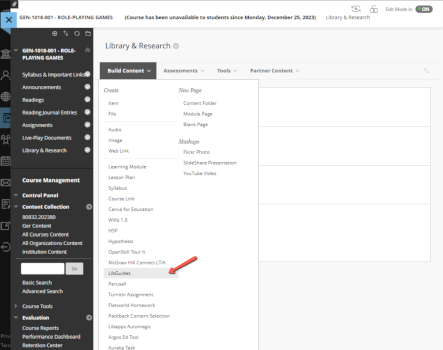
LTI Integration step 1
Go to the content module where you want to embed the guide. In the Build Content tab,
select the LibGuides link
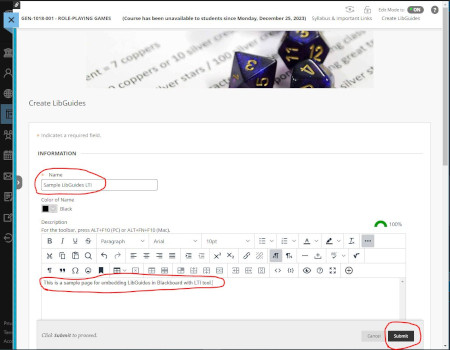
LTI Integration step 2
On the next screen, enter a name for the guide. We recommend that you also add a brief
description, including how students can expect to use it.
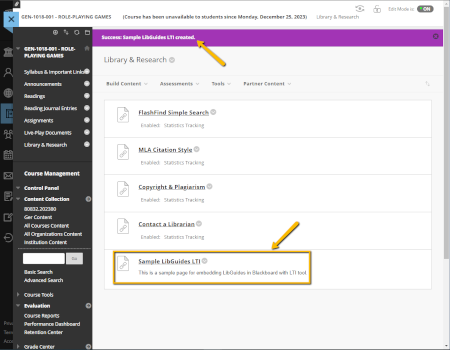
LTI Integration step 2.5
Click Submit. The title and description will now be in your course.
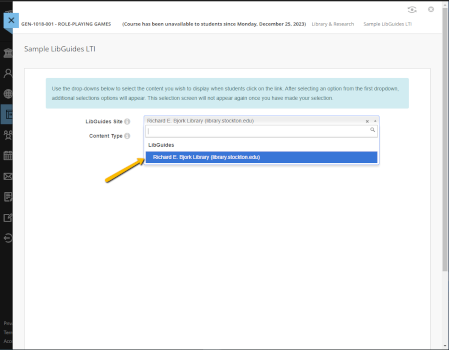
Step 3
Click on the title just created and choose Research Guides from the LibGuides dropdown
menu.
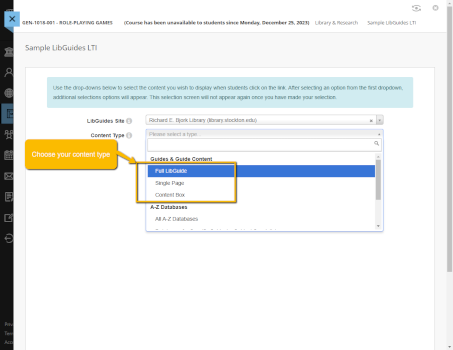
Step 4
Choose what kind of content you would like to embed: a full guide, a page, or a box.